In Part I, I discussed the rationale for porting a ASP.Net Core 2 app to my Linux system replacing SQL Server with Postgresql and place it on Heroku.
With Part II, we transferred the SQL Server data to Postgres.
In Part III, I create the ASP.Net MVC Core 2.x app, from which we will proceed, and get Entity Framework Core installed.
Then in Part IV, I look at the configuration differences between the ASP.Net MVC app that uses SQL Server and the new app, in preparation of porting the old app to use Postgresql.
Part V, we compared the differences in both the projects' structures and ported the existing project code, starting with the data model layer, to the new project. In addition to this, we got the jquery.countdown jquery plugin installed, that is used to implement a JavaScript timer. More on that in a later article. Finally, we used the dotnet ef dbcontext scaffold command that builds a DbContext and entity types for out Postgresql database. And, oh yes, we added the project to github, which frankly should have been done day one.
In Part VI, we got the NUnit testing framework in place in order to test both the new and future code.
In Part VII, we got the Service layer setup along with its unit tests.
In Part VIII we imported the Controller classes from the existing app and setup unit tests for them.
In this post, we will migrate the Razor (*.cshtml) files as well as the associated JavaScript, Cascading Style Sheet (CSS), and image files from the existing app.
As we have done in past posts, let's use Beyond Compare to see what needs to move.
So, as with the other tiers, we have some files to move in this layer.
After using Beyond Compare to move the Razor files, here is the view:
Next, let's look at the contents of the wwwroot folder, that holds the JavaScript, Cascading Style Sheet (CSS), and image files.
From here I simply replaced the contents of the new app with the JavaScript, Cascading Style Sheet (CSS), and image files of the existing app.
Now, we need to build and see what happens.
So, thus far, all is good. However, we know that the Program.cs and Startup.cs files as well as the appsettings.json and project files (*.csproj) content is still different. In the next post, Part X, we will migrate them from utilizing SQL Server to accessing Postgresql for data.
Tuesday, April 24, 2018
Monday, April 23, 2018
ASP.Net Core 2 with Postgresql on Linux Part 8: The Controller Layer
In Part I, I discussed the rationale for porting a ASP.Net Core 2 app to my Linux system replacing SQL Server with Postgresql and place it on Heroku.
With Part II, we transferred the SQL Server data to Postgres.
In Part III, I create the ASP.Net MVC Core 2.x app, from which we will proceed, and get Entity Framework Core installed.
Then in Part IV, I look at the configuration differences between the ASP.Net MVC app that uses SQL Server and the new app, in preparation of porting the old app to use Postgresql.
Part V, we compared the differences in both the projects' structures and ported the existing project code, starting with the data model layer, to the new project. In addition to this, we got the jquery.countdown jquery plugin installed, that is used to implement a JavaScript timer. More on that in a later article. Finally, we used the dotnet ef dbcontext scaffold command that builds a DbContext and entity types for out Postgresql database. And, oh yes, we added the project to github, which frankly should have been done day one.
In Part VI, we got the NUnit testing framework in place in order to test both the new and future code.
In Part VII, we got the Service layer setup along with its unit tests.
In this post, we will import the Controller classes from the existing app and setup unit tests for them.
Here is look at the existing and new Controller folders from Beyond Compare:
First, I copied the existing Controller classes to the new app and then updated the namespace settings as well as adjusted other dependencies. With that done, the Controller classes are moved.
With that done, the next post, Part IX, will detail the migration of the Razor (*.cshtml) files as well as the associated JavaScript, Cascading Style Sheet (CSS), and image files from the existing ASP.Net MVC app to the new app.
With Part II, we transferred the SQL Server data to Postgres.
In Part III, I create the ASP.Net MVC Core 2.x app, from which we will proceed, and get Entity Framework Core installed.
Then in Part IV, I look at the configuration differences between the ASP.Net MVC app that uses SQL Server and the new app, in preparation of porting the old app to use Postgresql.
Part V, we compared the differences in both the projects' structures and ported the existing project code, starting with the data model layer, to the new project. In addition to this, we got the jquery.countdown jquery plugin installed, that is used to implement a JavaScript timer. More on that in a later article. Finally, we used the dotnet ef dbcontext scaffold command that builds a DbContext and entity types for out Postgresql database. And, oh yes, we added the project to github, which frankly should have been done day one.
In Part VI, we got the NUnit testing framework in place in order to test both the new and future code.
In Part VII, we got the Service layer setup along with its unit tests.
In this post, we will import the Controller classes from the existing app and setup unit tests for them.
Here is look at the existing and new Controller folders from Beyond Compare:
First, I copied the existing Controller classes to the new app and then updated the namespace settings as well as adjusted other dependencies. With that done, the Controller classes are moved.
Then, I created unit tests for the main Controller methods. Instead of displaying the code in a screen shot, go to the unit tests github repository to see them all. Moreover, to see the corresponder Controller classes go here to the github repo.
With that done, the next post, Part IX, will detail the migration of the Razor (*.cshtml) files as well as the associated JavaScript, Cascading Style Sheet (CSS), and image files from the existing ASP.Net MVC app to the new app.
Friday, April 20, 2018
The Value of Planning Before Coding
In the article from The Atlantic, The Coming Software Apocalypse by James Somers (September 26, 2017), Leslie Lamport, a Turing Award–winning computer scientist is quoted to say, "Architects draw detailed plans before a brick is laid or a nail is hammered. But few programmers write even a rough sketch of what their programs will do before they start coding."
Somers then goes on, "Programmers are drawn to the nitty-gritty of coding because code is what makes programs go; spending time on anything else can seem like a distraction. And there is a patient joy, a meditative kind of satisfaction, to be had from puzzling out the micro-mechanics of code.
But code, Lamport argues, was never meant to be a medium for thought. 'It really does constrain your ability to think when you’re thinking in terms of a programming language,' he says. Code makes you miss the forest for the trees: It draws your attention to the working of individual pieces, rather than to the bigger picture of how your program fits together, or what it’s supposed to do—and whether it actually does what you think."
In short, take a few minutes and sketch out your algorithms before writing code. It may save you time in the long run.
Somers then goes on, "Programmers are drawn to the nitty-gritty of coding because code is what makes programs go; spending time on anything else can seem like a distraction. And there is a patient joy, a meditative kind of satisfaction, to be had from puzzling out the micro-mechanics of code.
But code, Lamport argues, was never meant to be a medium for thought. 'It really does constrain your ability to think when you’re thinking in terms of a programming language,' he says. Code makes you miss the forest for the trees: It draws your attention to the working of individual pieces, rather than to the bigger picture of how your program fits together, or what it’s supposed to do—and whether it actually does what you think."
In short, take a few minutes and sketch out your algorithms before writing code. It may save you time in the long run.
Monday, April 16, 2018
ASP.Net Core 2 with Postgresql on Linux Part 7: The Service Layer
In Part I, I discussed the rationale for porting a ASP.Net Core 2 app to my Linux system replacing SQL Server with Postgresql and place it on Heroku.
With Part II, we transferred the SQL Server data to Postgres.
In Part III, I create the ASP.Net MVC Core 2.x app, from which we will proceed, and get Entity Framework Core installed.
Then in Part IV, I look at the configuration differences between the ASP.Net MVC app that uses SQL Server and the new app, in preparation of porting the old app to use Postgresql.
Part V, we compared the differences in both the projects' structures and ported the existing project code, starting with the data model layer, to the new project. In addition to this, we got the jquery.countdown jquery plugin installed, that is used to implement a JavaScript timer. More on that in a later article. Finally, we used the dotnet ef dbcontext scaffold command that builds a DbContext and entity types for out Postgresql database. And, oh yes, we added the project to github, which frankly should have been done day one.
In Part VI, we got the NUnit testing framework in place in order to test both the new and future code.
In this post, we will get the Service layer setup in order to unit test which will test the Data and Model tiers as well.
Using the Beyond Compare tool, let's look at the differences between the existing ASP.Net MVC app and the new project concerning the Service tier:
Here is the updated code that contains the interface class as well as the implementation:
I find this easier to manage when changes are made to the interface since you are already in the correct location to update the implementation class, EsvService, in this case. Also, you will note that the class implements the ServiceBase class. Therefore, I will move that to the new app as well. After updating the namespace in the new code, the project compiled and all is well.
At any time if you want to view the source code, go here.
Next, let's get a reference set to the myApp project from the UnitTest project.
After adding the myApp project, which is the system under test (SUT), I added a few test methods:
Then, as you can see from above, I issued the dotnet test command and all passed.
However, we really do not want to run tests we are depending on outside resources each time. While that type of test is valuable, it is what is referred to as an integration test and should only be run as needed. Here, we just want to test our code and not the dependencies. Enter, Moq, the mock testing framework that helps you mock or fake the dependencies and just tests your code.
Then, I updated the existing Service test methods and moved integration tests to a separate class. In order to run the standard mocked unit tests separately, I employed NUnit's Category Attribute.
Then, I ran dotnet test --filter TestCategory=Unit, and here is the result:
After this, I ported the remaining Service classes from the existing ASP.Net MVC app to this one. Looking at the comparison there are several classes that were moved.
As I mentioned above, I moved the interface classes into the same file as their implementation classes. Therefore, the classes starting with "I" are not in the new app.
Now that we have the Data, Model, and Service layer classes ported, next in Part VIII, we will import the Controller classes from the existing to the app and setup unit tests for them.
With Part II, we transferred the SQL Server data to Postgres.
In Part III, I create the ASP.Net MVC Core 2.x app, from which we will proceed, and get Entity Framework Core installed.
Then in Part IV, I look at the configuration differences between the ASP.Net MVC app that uses SQL Server and the new app, in preparation of porting the old app to use Postgresql.
Part V, we compared the differences in both the projects' structures and ported the existing project code, starting with the data model layer, to the new project. In addition to this, we got the jquery.countdown jquery plugin installed, that is used to implement a JavaScript timer. More on that in a later article. Finally, we used the dotnet ef dbcontext scaffold command that builds a DbContext and entity types for out Postgresql database. And, oh yes, we added the project to github, which frankly should have been done day one.
In Part VI, we got the NUnit testing framework in place in order to test both the new and future code.
In this post, we will get the Service layer setup in order to unit test which will test the Data and Model tiers as well.
Using the Beyond Compare tool, let's look at the differences between the existing ASP.Net MVC app and the new project concerning the Service tier:
As you can see, there are no Service classes in the right side, which is the new app, of the folder-level comparison.
Instead of simply copying all the Service layer code to the new app with Beyond Compare, let's add one class at a time, setting up unit test for each one.
The first one we will copy is the EsvService.cs class. Also, you will note that in the above image, there is a IEsvService.cs file as well as EsvService. The IEsvService is an interface class. Here is a section of code from the EsvService.cs file:
public class EsvService : ServiceBase, IEsvService
{
private static string ApiKey
{
get { return "myKey"; }
}
private static DateTime TodaysDate
{
get { return GetESTDate(); }
}
//......
}
Here is the updated code that contains the interface class as well as the implementation:
public interface IEsvService
{
Task<string> GetVerseAsync(string verseReference);
Task<string> GetDailyVerseAsync();
Task<string> GetTodaysPsalmAsync();
}
public class EsvService: ServiceBase, IEsvService
{
private static string ApiKey
{
get { return "myKey"; }
}
private static DateTime TodaysDate
{
get { return GetESTDate(); }
}
//...
}
I find this easier to manage when changes are made to the interface since you are already in the correct location to update the implementation class, EsvService, in this case. Also, you will note that the class implements the ServiceBase class. Therefore, I will move that to the new app as well. After updating the namespace in the new code, the project compiled and all is well.
At any time if you want to view the source code, go here.
Next, let's get a reference set to the myApp project from the UnitTest project.
$ dotnet add reference ../myApp/myApp.csproj
After adding the myApp project, which is the system under test (SUT), I added a few test methods:
Then, as you can see from above, I issued the dotnet test command and all passed.
However, we really do not want to run tests we are depending on outside resources each time. While that type of test is valuable, it is what is referred to as an integration test and should only be run as needed. Here, we just want to test our code and not the dependencies. Enter, Moq, the mock testing framework that helps you mock or fake the dependencies and just tests your code.
$ dotnet add package Moq
Then, I updated the existing Service test methods and moved integration tests to a separate class. In order to run the standard mocked unit tests separately, I employed NUnit's Category Attribute.
Then, I ran dotnet test --filter TestCategory=Unit, and here is the result:
As I mentioned above, I moved the interface classes into the same file as their implementation classes. Therefore, the classes starting with "I" are not in the new app.
Now that we have the Data, Model, and Service layer classes ported, next in Part VIII, we will import the Controller classes from the existing to the app and setup unit tests for them.
Monday, April 09, 2018
ASP.Net Core 2 with Postgresql on Linux Part 6: Setting up Unit Testing
In In Part I, I discussed the rationale for porting a ASP.Net Core 2 app to my Linux system replacing SQL Server with Postgresql and place it on Heroku.
With Part II, we transferred the SQL Server data to Postgres.
In Part III, I create the ASP.Net MVC Core 2.x app, from which we will proceed, and get Entity Framework Core installed.
Then in Part IV, I look at the configuration differences between the ASP.Net MVC app that uses SQL Server and the new app, in preparation of porting the old app to use Postgresql.
Part V, we compared the differences in both the projects' structures and ported the existing project code, starting with the data model layer, to the new project. In addition to this, we got the jquery.countdown jquery plugin installed, that is used to implement a JavaScript timer. More on that in a later article. Finally, we used the dotnet ef dbcontext scaffold command that builds a DbContext and entity types for out Postgresql database. And, oh yes, we added the project to github, which frankly should have been done day one.
In this post, Part VI, it would be best to get a unit testing framework in place in order to test both the new and future code.
First, let's create a new unit test project. I have found that it is best to separate the csproj files so I have created a new folder. So from a separate folder than the myApp folder I issued the following command:
Here is the output
Using the new Multi-root workspace feature, I was able to add the new UnitTests project to thew view in VS Code:
Next, within the new UnitTest project folder, I issued the following in the unit test project directory:
Then:
The final command to get all the NUnit packages installed was:
I issued the dotnet restore to make sure that everything was up to date. When doing that I noted the following error:
I then noted that the target framework was not the standard and not the core framework:
After updating the TargetFramework setting to netcoreapp2.0 and running dotnet restore, it was good.
One thing I noted with working with the multi-root workspace feature, the C# extension settings did not take effect until I closed VS Code, opened the new UnitTest project in VS Code by itself, rebuilt the project, closed it, and then re-opened the multi-root workspace.
Next, step was to create an NUnit test to simply test that the NUnit packages are setup properly. This seemed appropriate:
I then invoked the dotnet test command and all is well:
In Part VII, we will get the Service layer setup in order to unit test it as well as the Data and Model tiers.
With Part II, we transferred the SQL Server data to Postgres.
In Part III, I create the ASP.Net MVC Core 2.x app, from which we will proceed, and get Entity Framework Core installed.
Then in Part IV, I look at the configuration differences between the ASP.Net MVC app that uses SQL Server and the new app, in preparation of porting the old app to use Postgresql.
Part V, we compared the differences in both the projects' structures and ported the existing project code, starting with the data model layer, to the new project. In addition to this, we got the jquery.countdown jquery plugin installed, that is used to implement a JavaScript timer. More on that in a later article. Finally, we used the dotnet ef dbcontext scaffold command that builds a DbContext and entity types for out Postgresql database. And, oh yes, we added the project to github, which frankly should have been done day one.
In this post, Part VI, it would be best to get a unit testing framework in place in order to test both the new and future code.
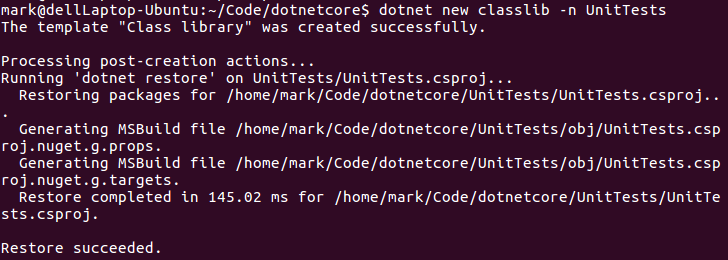
First, let's create a new unit test project. I have found that it is best to separate the csproj files so I have created a new folder. So from a separate folder than the myApp folder I issued the following command:
$ dotnet new classlib -n UnitTests
Here is the output
Using the new Multi-root workspace feature, I was able to add the new UnitTests project to thew view in VS Code:
Next, within the new UnitTest project folder, I issued the following in the unit test project directory:
$ dotnet add package NUnit
After that:
$ dotnet add package Microsoft.NET.Test.Sdk
Then:
$ dotnet add package NUnit.Console
The final command to get all the NUnit packages installed was:
$ dotnet add package NUnit3TestAdapter
I issued the dotnet restore to make sure that everything was up to date. When doing that I noted the following error:
I then noted that the target framework was not the standard and not the core framework:
After updating the TargetFramework setting to netcoreapp2.0 and running dotnet restore, it was good.
One thing I noted with working with the multi-root workspace feature, the C# extension settings did not take effect until I closed VS Code, opened the new UnitTest project in VS Code by itself, rebuilt the project, closed it, and then re-opened the multi-root workspace.
Next, step was to create an NUnit test to simply test that the NUnit packages are setup properly. This seemed appropriate:
I then invoked the dotnet test command and all is well:
In Part VII, we will get the Service layer setup in order to unit test it as well as the Data and Model tiers.
Monday, April 02, 2018
ASP.Net Core 2 with Postgresql on Linux Part 5: Data Model Layer, Etc.
In In Part I, I discussed the rationale for porting a ASP.Net Core 2 app to my Linux system replacing SQL Server with Postgresql and place it on Heroku.
With Part II, we transferred the SQL Server data to Postgres.
In Part III, I create the ASP.Net MVC Core 2.x app, from which we will proceed, and get Entity Framework Core installed.
Then in Part IV, I look at the configuration differences between the ASP.Net MVC app that uses SQL Server and the new app, in preparation of porting the old app to use Postgresql.
Here in Part V, we will start comparing the differences in both the projects' structures and porting the existing project code, starting with the data model layer, to the new project.
Since the next step is to look at the existing Windows ASP.Net MVC app using SQL Server and to move it to a Linux system with Postgresql, I thought it best to first look at what the overall differences are in the two projects.
So, using Beyond Compare, as mentioned in the previous post, to look at the differences in the folder structure, here are my initial observations.
First, note that there is a bower package component folder that is not present in the new app. Within the folder bower_components folder you see jquery.countdown. As per their site, they state to use the following to install:
While their github page offers other installation methods via npm, et al, bower is still solid. However, even bower is encouraging a move to yarn...yet bower is still being maintained.
Looking at further differences, there is a Data folder with Entity Framework Core classes as well as classes that implement them.
With Part II, we transferred the SQL Server data to Postgres.
In Part III, I create the ASP.Net MVC Core 2.x app, from which we will proceed, and get Entity Framework Core installed.
Then in Part IV, I look at the configuration differences between the ASP.Net MVC app that uses SQL Server and the new app, in preparation of porting the old app to use Postgresql.
Here in Part V, we will start comparing the differences in both the projects' structures and porting the existing project code, starting with the data model layer, to the new project.
Since the next step is to look at the existing Windows ASP.Net MVC app using SQL Server and to move it to a Linux system with Postgresql, I thought it best to first look at what the overall differences are in the two projects.
So, using Beyond Compare, as mentioned in the previous post, to look at the differences in the folder structure, here are my initial observations.
First, note that there is a bower package component folder that is not present in the new app. Within the folder bower_components folder you see jquery.countdown. As per their site, they state to use the following to install:
$ bower install jquery.countdown
While their github page offers other installation methods via npm, et al, bower is still solid. However, even bower is encouraging a move to yarn...yet bower is still being maintained.
Looking at further differences, there is a Data folder with Entity Framework Core classes as well as classes that implement them.
Then, I copied the Entity Framework Core classes as well as the implementation classes to a Data folder in myApp.
Of course, this will not be useful until the controller and view objects are ported as well. Meanwhile, I will get unit tests for the the data model layer...more on this later.
So, given the fact that, as found above, that bower is encouraging a move to yarn, it seems prudent to make that move for this app now. Per Yarn's site, here is what I did:
$ curl -sS https://dl.yarnpkg.com/debian/pubkey.gpg | sudo apt-key add -
$ echo "deb https://dl.yarnpkg.com/debian/ stable main" | sudo tee /etc/apt/sources.list.d/yarn.list
$ sudo apt-get update && sudo apt-get install yarn
Next, I attempted to install jquery.countdown via yarn with:
$ yarn install jquery.countdown
The result was the following:
yarn install v1.5.1
info No lockfile found.
error An unexpected error occurred: "`install` has been replaced with `add` to add new dependencies. Run \"yarn add jquery.countdown\" instead.".
info If you think this is a bug, please open a bug report with the information provided in "/home/mark/Code/dotnetcore/myApp/yarn-error.log".
info Visit https://yarnpkg.com/en/docs/cli/install for documentation about this command.
So, per the above instructions:
We will test the install jquery.countdown later, meanwhile let's try to build the myApp project.
As expected, there are things missing and the build fails.
Given that we have just ported classes that have a different name space as well as references to objects that are not in the project, we have a great deal of red text above. Now to make the corrections.
First, I replaced the old reference to the m2prayerVS2017NetCore.Models name space with myApp.Models in each of the migrated Entity Framework Core classes. Also, the Migrations folder were from the previous project and not needed here.
After commenting the Entity Framework Core code that was calling into missing model files, I issued the following command to get the model objects scaffolded from the Postgres database:
$ dotnet ef dbcontext scaffold "Host=localhost;Database=postgres;Username=youUserName;Password=yourPassword" Npgsql.EntityFrameworkCore.PostgreSQL -o Models
Then, I uncommented the Entity Framework Core code and corrected for the lower-case use of table names that are conventional with Postgresql. For example, while SQL Server will have a table named AspNetUsers, Postgres' naming convention entitles it aspnetusers.
Yet, when attempting to build, I found that I was missing the ApplicationUser class from the Models namespace.
After copying it from the old ASP.Net app and updating the namespace name, the project would then build.
Oh my, I just realized that we do not have this project in any kind of source control! Let's take care of that right now. Essentially, I followed the steps here.
Given that the Entity Framework Core data classes have been moved to the myApp application and the model objects scaffolded, creating unit tests utilizing them is the next step. Therefore, in Part VI we will look at setting up unit testing in order to test both the new and future code.
Monday, March 26, 2018
ASP.Net Core 2 with Postgresql on Linux Part 4: Sync Configuration Differences
In In Part I, I discussed the rationale for porting a ASP.Net Core 2 app to my Linux system replacing SQL Server with Postgresql and place it on Heroku. In Part II, we transferred the SQL Server data to Postgres.
In Part III, I create the ASP.Net MVC Core 2.x app, from which we will proceed, and get Entity Framework Core installed.
Next, in Part IV, I look at the configuration differences between the ASP.Net MVC app that uses SQL Server and the new app, in preparation of porting the old app to use Postgresql.
First, let's look at the existing app's project file and compare that to the one that we have in our new app that use Postgresql. Of course, in order to do that we will need the code from the app using SQL Server. To do that, I cloned my existing Windows based ASP.Net MVC .Net Core project onto my Linux system as I will be reusing a good deal of the code moving forward. Here is what I did (For more information see: https://git-scm.com/book/en/v2/Git-Basics-Getting-a-Git-Repository):
Now that we have the code from the existing app, let's compare the two project's config files, which are in the root directory of each projects' folder.
One of my favorite tools for this task is a multi-platform, data comparison utility called Beyond Compare. Comparing the two project files, here is a look at the differences.
In Part III, I create the ASP.Net MVC Core 2.x app, from which we will proceed, and get Entity Framework Core installed.
Next, in Part IV, I look at the configuration differences between the ASP.Net MVC app that uses SQL Server and the new app, in preparation of porting the old app to use Postgresql.
First, let's look at the existing app's project file and compare that to the one that we have in our new app that use Postgresql. Of course, in order to do that we will need the code from the app using SQL Server. To do that, I cloned my existing Windows based ASP.Net MVC .Net Core project onto my Linux system as I will be reusing a good deal of the code moving forward. Here is what I did (For more information see: https://git-scm.com/book/en/v2/Git-Basics-Getting-a-Git-Repository):
$mkdir WinCoreProject
$cd WinCoreProject
$git clone https://myUserName@bitbucket.org/myUserName/myASPNetCoreApp.git
Now that we have the code from the existing app, let's compare the two project's config files, which are in the root directory of each projects' folder.
One of my favorite tools for this task is a multi-platform, data comparison utility called Beyond Compare. Comparing the two project files, here is a look at the differences.
Note the text in red in the right side of the view. This shows that the old app's configuration includes three additional settings. The NetCore.MailKit entry is for a MailKit extension for asp.net core that I use to send a confirmation email to users who want to create a user account. Serilog is a logging library with many nice features. In addition, we see the Serilog.Sinks.RollingFile package setting that allows for a daily log file entries.
To sync the two files, let's continue with Beyond Compare. Select the yellow arrows in the right pane to move the text to the config file displayed in the left pane.
Then, to update the myApp.csproj file, select the disk icon to the right of the project file name.
Here is the view of the synced files:
Next, run the dotnet restore command at the command prompt to install the packages:
$dotnet restore
Note that you can also install the packages at the command prompt in the application's root directory:
$dotnet add package NETCore.MailKit
Per the location here, "The dotnet add package command provides a convenient option to add a package reference to a project file. After running the command, there's a compatibility check to ensure the package is compatible with the frameworks in the project. If the check passes, a <PackageReference> element is added to the project file and dotnet restore is run."
Visual Studio Code, with the C# extension, will also assist you when you update the project file.
In the next post, Part V, we will start comparing the differences in both the projects' structures and porting the existing project code, starting with the data model layer, to the new project.
Friday, March 23, 2018
ASP.Net Core 2 with Postgresql on Linux Part 3: Create the ASP.Net MVC Core 2.x app and Install Entity Framework Core
In Part I, I discussed the rationale for porting a ASP.Net Core 2 app to my Linux system replacing SQL Server with Postgresql and place it on Heroku. As I thought about it, my first logical step was to port the data from SQL Server to Postgresql. While I think I am proficient at the command prompt, I had to admit that having a GUI based tool would be a help. Having used pgAdmin on a Rails 3.x project, that is where I leaned. In that article I show the steps to installing pgAdmin, a GUI Postgresql client on Ubuntu 16.04. In Part II, we transferred the SQL Server data to Postgres.
In this post, I create the ASP.Net MVC Core 2.x app, from which we will proceed, and get Entity Framework Core installed.
First, I created a new ASP.Net MVC .Net Core C# project in Visual Studio Code (see https://docs.microsoft.com/en-us/aspnet/core/tutorials/first-mvc-app-xplat/start-mvc for more).
I already had the .NET Core 2.0.0 SDK, Visual Studio Code, and the VS Code C# extension on my Ubuntu 16.04 Linux system. See https://docs.microsoft.com/en-us/aspnet/core/tutorials/first-mvc-app-xplat/start-mvc for more information on these steps.
Then, I issued a dotnet run to build and execute the source code:
OK, so the app will build and load.
Next, I updated the project file in Visual Studio Code (myApp.csproj) to include the following settings to install Entity Framework Core:
Then, I ran the dotnet restore command to install the above EF package and tools:
Now we have a working ASP.Net MVC Core 2.0 app with Entity Framework Core installed.
Next, in Part IV, I look at the configuration differences, in preparation of porting my existing app to use Postgresql.
In this post, I create the ASP.Net MVC Core 2.x app, from which we will proceed, and get Entity Framework Core installed.
First, I created a new ASP.Net MVC .Net Core C# project in Visual Studio Code (see https://docs.microsoft.com/en-us/aspnet/core/tutorials/first-mvc-app-xplat/start-mvc for more).
$mkdir myApp
$cd myApp
$dotnet new mvc
I already had the .NET Core 2.0.0 SDK, Visual Studio Code, and the VS Code C# extension on my Ubuntu 16.04 Linux system. See https://docs.microsoft.com/en-us/aspnet/core/tutorials/first-mvc-app-xplat/start-mvc for more information on these steps.
Then, I issued a dotnet run to build and execute the source code:
Per the URL provided in Visual Studio Code screen above, I browsed to http:/localhost:5000:
Next, I updated the project file in Visual Studio Code (myApp.csproj) to include the following settings to install Entity Framework Core:
<Project Sdk="Microsoft.NET.Sdk.Web">
<PropertyGroup>
<TargetFramework>netcoreapp2.0</TargetFramework>
</PropertyGroup>
<ItemGroup>
<PackageReference Include="Microsoft.AspNetCore.All" Version="2.0.5" />
<PackageReference Include="Npgsql.EntityFrameworkCore.PostgreSQL" Version="2.0.0" />
</ItemGroup>
<ItemGroup>
<DotNetCliToolReference Include="Microsoft.VisualStudio.Web.CodeGeneration.Tools" Version="2.0.2" />
<DotNetCliToolReference Include="Microsoft.EntityFrameworkCore.Tools" Version="2.0.0" />
<DotNetCliToolReference Include="Microsoft.EntityFrameworkCore.Tools.DotNet" Version="2.0.0" />
</ItemGroup>
</Project>
Then, I ran the dotnet restore command to install the above EF package and tools:
$dotnet restore
Now we have a working ASP.Net MVC Core 2.0 app with Entity Framework Core installed.
Next, in Part IV, I look at the configuration differences, in preparation of porting my existing app to use Postgresql.
Subscribe to:
Posts (Atom)